Day to day · Chapter 9
Child accounts.
A child does not request in Nexview, a child wishes for something. That sounds like hair-splitting and is the whole design: a request has consequences, it takes quota and space and lands with the operator. A wish is none of that at first. Only when a parent agrees does it become an ordinary request in the parent’s name. This chapter shows how to create a child account and what your child then sees.
Permission first
Not every user may create child accounts. The permission “May create child accounts” is handed out by the operator per person under “Settings › Users”, and it is off out of the box. Administrators always have it. Whoever does not have it still finds, under “Profile › Children”, an explanation of what the feature does and does not do, and the button “Request permission for child accounts”. The request reaches the operator as a ticket without you filling in anything. The operator grants permission in the ticket with one click. If the permission is withdrawn later, the child accounts are disabled, not deleted. A child account itself never gets the permission.
Creating a child account
Child accounts live in your profile under “Children”. Choose “Add child account”. A child needs a “Username”, a “Password” (twice, because you choose it for someone else) and an “Age” from 0 to 16. No e-mail address, Plex account or invitation is needed.
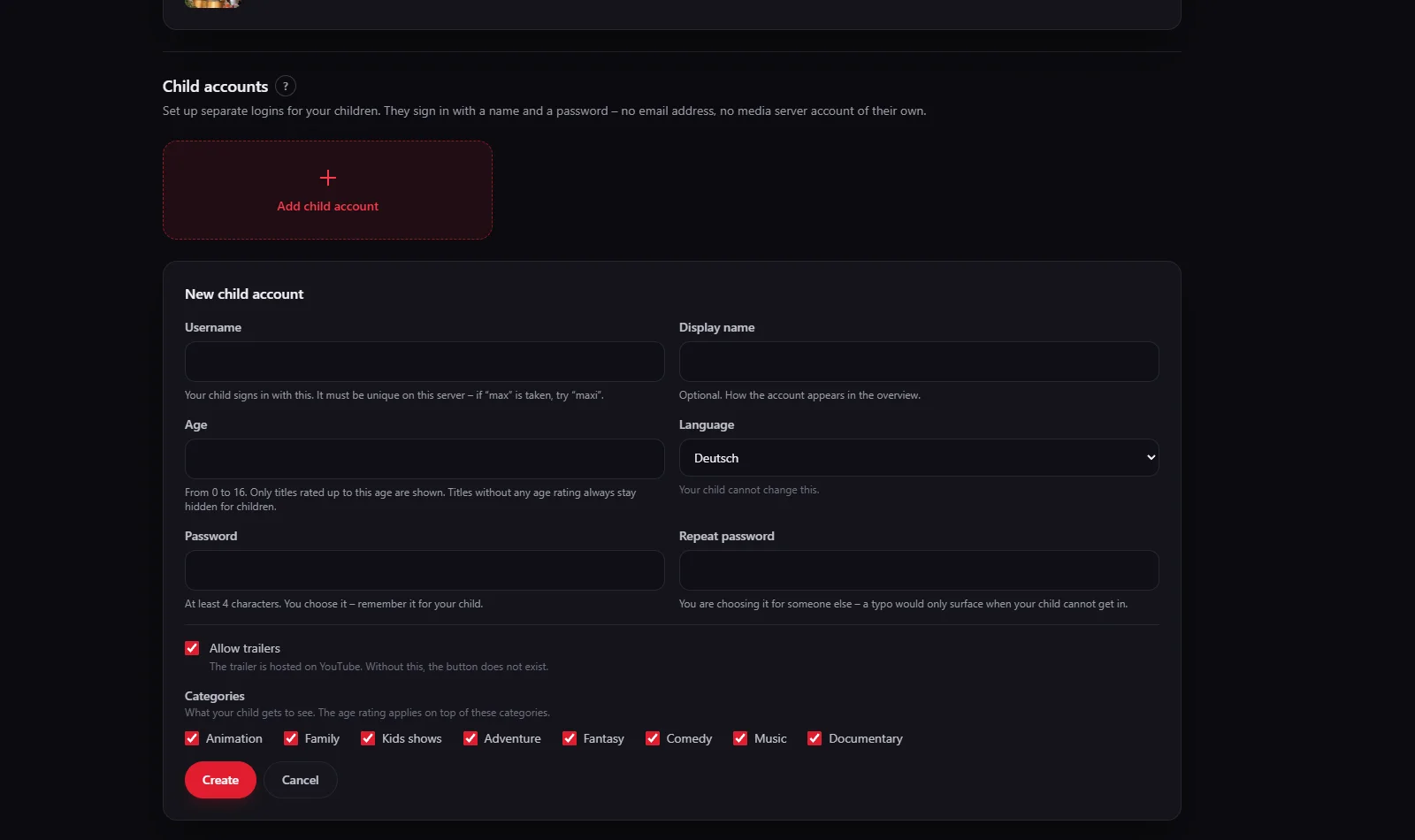
- Username. It must be unique on the server. If “max” is taken, use “maxi”. It cannot be changed later, because the child signs in with it.
- Categories. Animation, Family, Kids shows, Adventure, Fantasy, Comedy, Music and Documentary. You tick what your child may see, the rest does not exist for this account. At least one category has to be ticked.
- Age. Within the categories Nexview shows only what is rated up to this age. Titles without any age rating always stay hidden for children.
- “Allow trailers”. Trailers are hosted on YouTube. Without the tick the button does not exist at all.
- Language. The child cannot change it.
The account is subordinate to yours. It cannot change its own password, cannot store an address and cannot reach any adult area of the app. If you delete your account, the child accounts go with it. Start with a few categories: adding is easier than taking away.
Good to knowWhy two dials and not just the age? TMDB’s age ratings are thin: about a third of films and a good four tenths of shows carry none at all. With the age filter alone too little would be left. The categories make sure something arrives at all, and the age sorts out within them.
What the child sees
A child does not get an interface with greyed-out buttons but a different app: light, warm colours, large surfaces and three destinations at the bottom, “Discover”, “Search” and “Wishes”. There is no bell, no tickets, no watchlist and no settings. The lock is not a matter of the interface: which routes a child account may take is an allow-list on the server, and a call made around the view gets no further.
- Two sections per category. At the top is “You can watch these now”, what is in the library, with a green tick and no wish button. Below is “You can wish for these”. The title page works the same way, and underneath there is always the sentence “Your mum or dad decides.”
- The wish. The button reads “I want to watch this”. There is no quality profile, no root folder and no choice between Full-HD and 4K, that is decided later by whoever has to decide it.
- The search looks only within the enabled categories and only up to the child’s age. If nothing turns up, it says: “That is not here. Ask your mum or dad about it.”
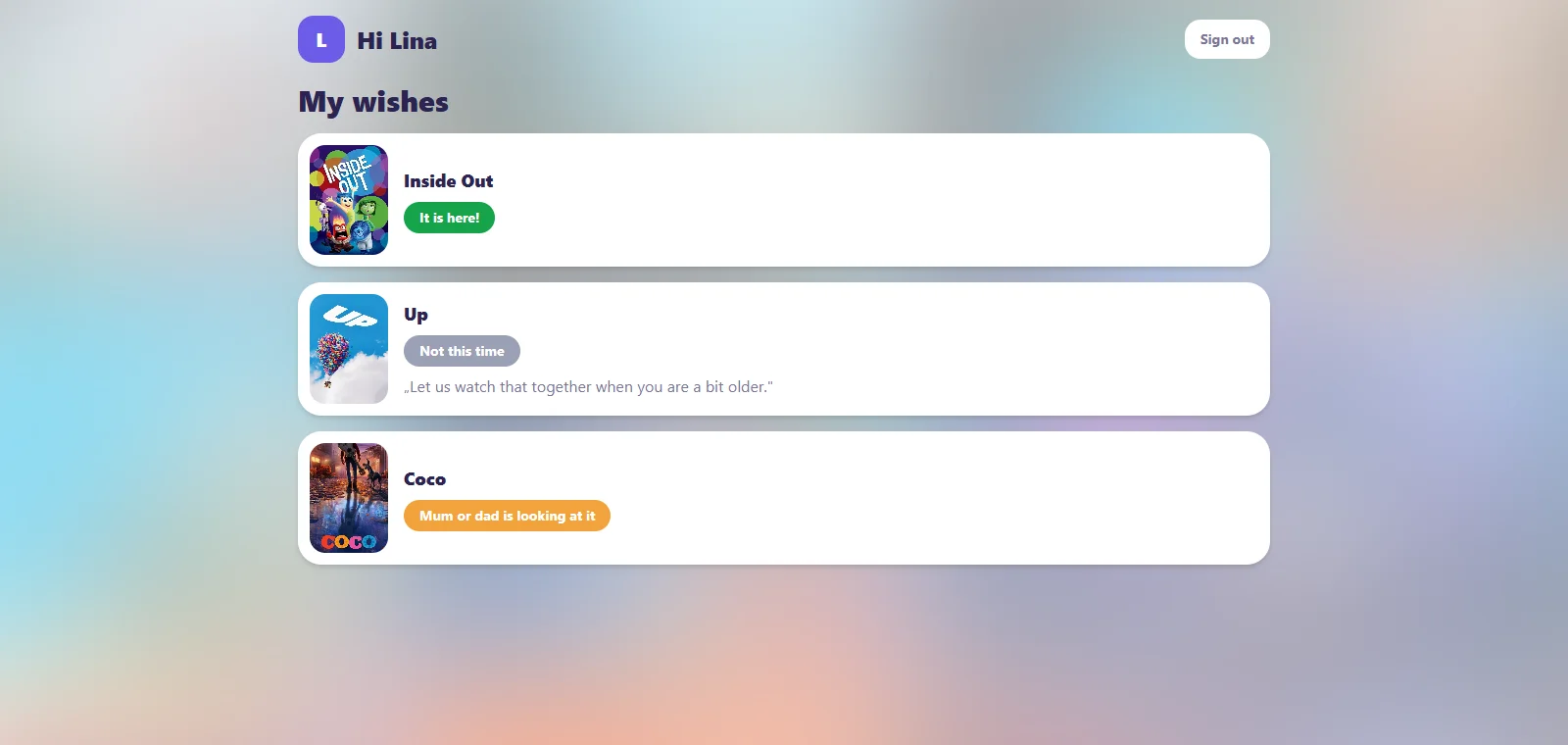
- “My wishes” has only four answers: “Mum or dad is looking at it”, “On its way”, “It is here!” and “Not this time”. If you decline and write a sentence, it appears word for word underneath.
Approving wishes
Open wishes appear at the top of the “Children” tab under “Your children’s wishes”, with poster, title, year and the child’s name. When a wish is waiting, the bell also speaks up, and the jump from there leads straight to where decisions are made. The switch “Your children’s wishes” for the mail is under “Profile › Notifications”, and it appears only if you have an active child account. Without it you notice a wish only the next time you look at your profile.

- “Approve” creates an ordinary request in your name. The rules that apply to you anyway then take effect by themselves: blocklist, “already in the library”, profile blocks, 4K permission and your quota. If your quota is full, the wish fails right there, with the reason you would get otherwise. If in your house the approver picks the target, it says so (“The approver picks folder and quality when approving”), otherwise you pick quality and root folder yourself.
- Partial approval. For a show you can choose “Whole season” or “Pick single episodes only”. That lets a child have a first look. When the approved part is done, the child gets the button “I want more of this”.
- “Decline” asks for a short reason, optional. Without it, it just says “Not this time”.
- Duplicates. If someone else has requested the title long since, Nexview closes the wish by itself, as done and not as declined.
No rule can override a wish: a child’s wish always goes to the parents, even where a rule would match. And wishes count nowhere. Only the approval turns one into a request that touches your quota and your storage.
The preview
What actually reaches my child? Everything else is guesswork. That is why every child account has “Preview”, a button with an eye that opens the children’s view exactly as the child sees it. It is the same view with the same rules, only read-only: wishing does not work in the preview. A bar at the top says whose view you are in, and a single way leads back. If you want to check what a newly ticked category does, you see it here in two clicks.
A child grows older
Below the wishes there is one tile per child, with name and age. Four buttons on it: “Preview”, “Disable”, “Edit” and “Delete”. Age, categories, trailers, language and password can be adjusted at any time, only the username stays. “Disable” is the gentle way: the account can no longer sign in but keeps all its settings, and “Enable again” brings it back. Deleting is final and does not touch titles already requested, which run through your account. There is no reset by e-mail for children. If your child forgets the password, you set a new one, which is the only way and is meant to be.
The operator sees the child accounts in a group of their own at the end of the user list, each with “Child of …” and the age. They are visible but not editable, they belong to their parent.
What child accounts do not do
- They work only in Nexview. Whoever opens the same media server directly sees everything on it. What your child can reach on the media server you decide there. Combining both gives you a workable safeguard, relying on Nexview alone does not.
- The age ratings are other people’s data. They come from TMDB, a public film database, and can be missing or wrong. Nobody can vouch for them, Nexview included. That is exactly why the preview comes so far forward: it shows what really arrives.
- They cost choice. Because titles without an age rating stay hidden for children, some harmless things are missing too, and new releases often carry no rating yet. The direction is deliberate: when in doubt show too little. If that is too strict for an older child, enable one more category rather than loosening the limit.
- The child gets nothing beyond their app: no notifications, no tickets, no watchlist.
- No substitute for a conversation. The wish route forces a short look at every title instead of filtering quietly in the background. It does not replace somebody knowing what the child watches.
Next is the matter of being told: Notifications. What child accounts mean otherwise is on the Child accounts page under Features.