Getting started · Chapter 2
Connect your media server.
Nexview runs without a media server too, and the setup wizard does not ask about one. Connect Plex, Jellyfin or Emby, though, and Nexview knows what is already in your library, and your people sign in with the account they have anyway. This chapter shows how to connect one and what Nexview reads from it afterwards.
What it adds
- Sign-in with the server account. No second password and, with Plex, not even an invitation.
- The library sync. Titles that are already there show as “In the library”, even if they never came through nexcrate, Radarr or Sonarr, and cannot be requested a second time.
- The Plex watchlist, right inside the catalogue. Only Plex has one.
- Watched. Titles you have already seen carry an eye. Everyone sees only their own.
- Who is watching now. Across every connected server, with the device and a note on whether the server is transcoding the video.
You may connect several servers at the same time, Plex and Jellyfin during a move, say. “In the library” holds as soon as any one of them has the title.
Connecting a server
The connection lives under “Settings › Services › Media server”. The three providers appear as tiles with their state: “Connected”, “Not connected”, “Access denied” or “Not reachable”.
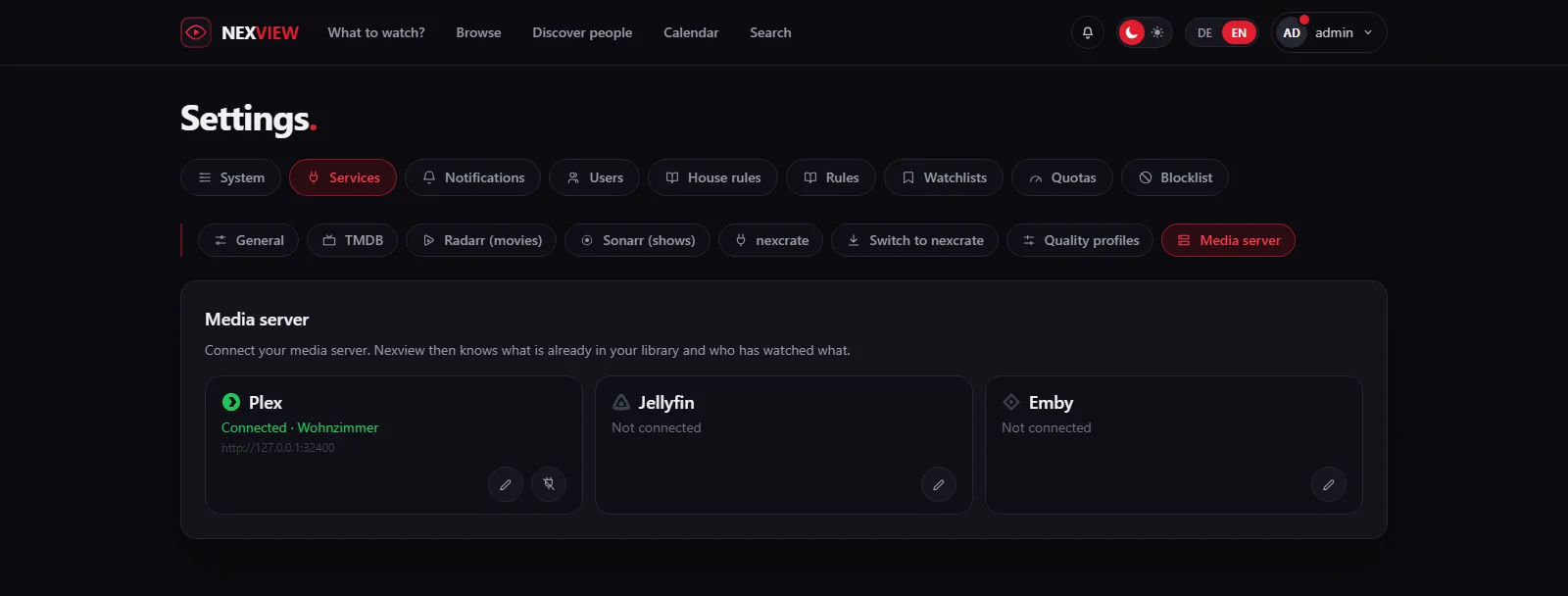
- Plex
Choose “Connect to Plex”. Nexview opens a window at plex.tv and waits for your confirmation. If no window opened, the page shows a code and offers “Open Plex sign-in” so you can do it by hand. Then you choose the server Nexview should use. Only servers you own are offered, because libraries shared with you cannot be managed. Your Plex password never reaches Nexview.
- Jellyfin and Emby
Neither has an intermediary. You enter the “Server address”, the username of an account with administrator rights and its password. The password is not stored: it fetches a token once, and Nexview keeps only that. Only with an administrator can Nexview read the server’s users.
- Wait
On connecting, Nexview reads the whole library right away. With large collections that can take a few minutes. Do not reload the page meanwhile.
Nexview remembers the first address at which the server actually answers. With Plex the local address comes first, but from inside a container it is not always reachable. If none answers, Nexview saves anyway and says so. With Plex, sign-in then keeps working through plex.tv, and only the library sync needs a reachable address.
Good to knowIf Nexview runs in a container, localhost is the container itself and not your machine. For Jellyfin and Emby enter the address the server has on your network, or its service name if both share a Docker network.
Signing in with the server account
Whoever has an account on a connected server can choose it on the sign-in page. With Plex the check runs against your server’s identifier, so a stranger’s Plex account does not get in. Someone who already has a Nexview account links the server in their profile under “Media servers”, as the chapter Accounts and roles shows.
New accounts with Plex
Out of the box “Create new accounts automatically” is on. Anyone with access to your Plex library gets an account on first sign-in, with no invitation and no confirmation mail. The role is the default under “Defaults for new accounts”, either “User” or “Approver”, never administrator. New accounts do not get automatic approval. They inherit the household’s limits. If you switch the option off, only invited people and already linked accounts get in.
Jellyfin and Emby
Signing in through these two does not create a new account. Neither gives an e-mail address for an account, and without one Nexview could not tell whether someone already has one. The way for these people is the takeover: with “Take over accounts from Jellyfin” (or Emby, or Plex) Nexview asks the server for its accounts and shows them in a list. For each row you decide whether it becomes a new account or links to an existing one. Newly created accounts are ordinary users, need approval for requests, have no password and no e-mail address, and sign in through the server. For their limits you choose, under “For newly created accounts”, “house default”, “unlimited” or “fixed number” for each.
Blocked accounts
When you delete an account, its identifier goes on a list (“Blocked accounts”). That way the same person does not simply create a new account at their next sign-in. “Remove block”, or taking the account over, takes it off again.
The library sync
Nexview reads what sits in your libraries, so it also recognises titles that were copied by hand or come from a collection older than any automation. The sync runs hourly in the background. In the settings, “Library sync” shows when it last ran, and “Sync now” starts it at once. If it fails, Nexview names the reason in plain words.
The Plex watchlist
What you put on your Plex watchlist appears in Nexview as the same tiles as in the catalogue, with the same badges. A filter separates “All” from “Not here yet”, and that second list is the reason the page exists: it shows what you have bookmarked but not fetched yet. A click opens the usual request dialogue, and quota, approval, blocklist and age limit apply there as everywhere.
- Switch it on
An administrator turns the feature on under “Settings › Watchlists” with “Enable watchlists”. It is off out of the box, and the tab appears only when a media server is connected.
- Look at it
Everybody finds their watchlist under “Profile › Manage watchlist”. For that Nexview needs the personal Plex access. If the account was linked before the feature existed, the page offers “Sign in with Plex”, and once is enough.
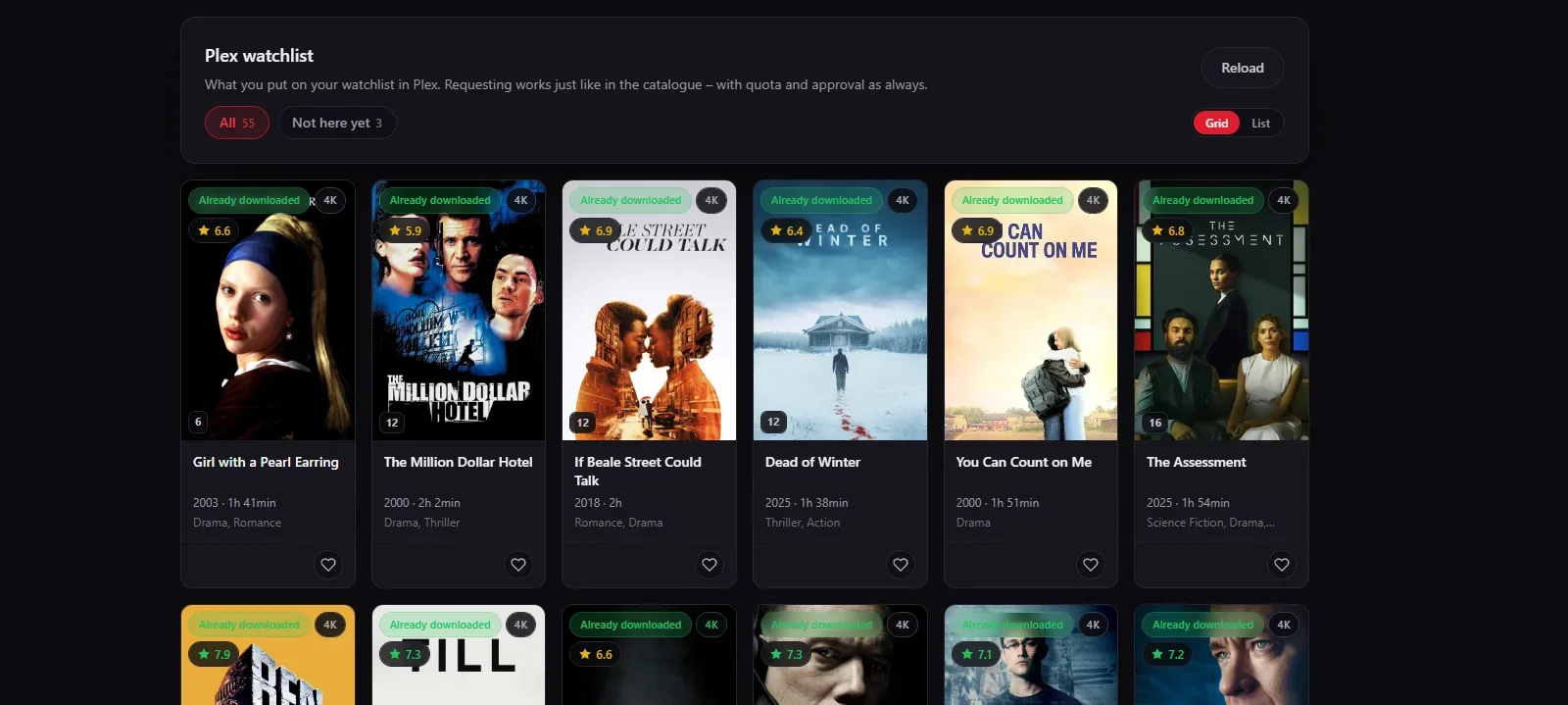
Nothing happens by itself. There is no background sync that requests on its own, every title needs a click. Titles that cannot be matched to a TMDB number are missing from the list. That comes from the data in Plex, and the page counts them.
Watched and Playing now
Titles you have already watched on the media server carry an eye in Nexview, and everyone sees only their own. With Plex the server has the last word: if you remove the tick there, the eye disappears here too. An administrator sees who watched what under “Statistics & analysis › Watching”.
The “Playing now” card on the “Admin dashboard” shows who is watching on which device, whether it is paused and whether the server is transcoding the video. That is the part that costs processing time.
When access expires or the server is gone
If a server rejects the stored access, the tile says “Access denied”. Sync, account takeover and the display of live playback work again only after you sign in again. “Sign in again” replaces the access only; the connection, linked accounts and settings stay as they are. If the server is merely not answering right now, the tile says “Not reachable”, and Nexview says nothing about the access until it is back.
“Disconnect server” cuts the connection. Beforehand Nexview shows how many accounts are linked to it and which of those have no password of their own and could not get back in. Give those accounts a password first under “Settings › Users”. The links stay saved: connect the same server again later and everything is as it was.
What Nexview does not do
- Nexview plays nothing. That stays the job of Plex, Jellyfin and Emby.
- Only Plex has a watchlist. Jellyfin and Emby have none, so Nexview does not offer the section there at all.
- Without a media server you lose signing in with the server account, the hint in the library, the watchlist and the eye. Discover, requests, approvals, calendar and notifications run unchanged.
Next you tell Nexview who procures the titles: nexcrate or Radarr and Sonarr.