Getting started · Chapter 3
nexcrate or Radarr and Sonarr.
Nexview downloads nothing itself. It passes requests on to whatever procures for you and then shows you the state. There are two ways to do that: nexcrate, a single connection for movies, shows and music with several versions of each title, or Radarr for movies and Sonarr for shows, optionally with a second instance for 4K. You decide once for movies and shows together, there is no mixed mode. From Radarr and Sonarr you can move to nexcrate later, with an assistant to guide you. In the other direction there is no assistant.
The choice in the wizard
The setup wizard asks right after the TMDB step: “Who procures the titles?” After that it shows only the steps that belong to your answer. With nexcrate those are an address, pairing, and the question of which versions everyone may request. With Radarr and Sonarr there is one step each for address and API key. Either can be skipped with “Set up later” and picked up under “Settings › Services”.
With nexcrate
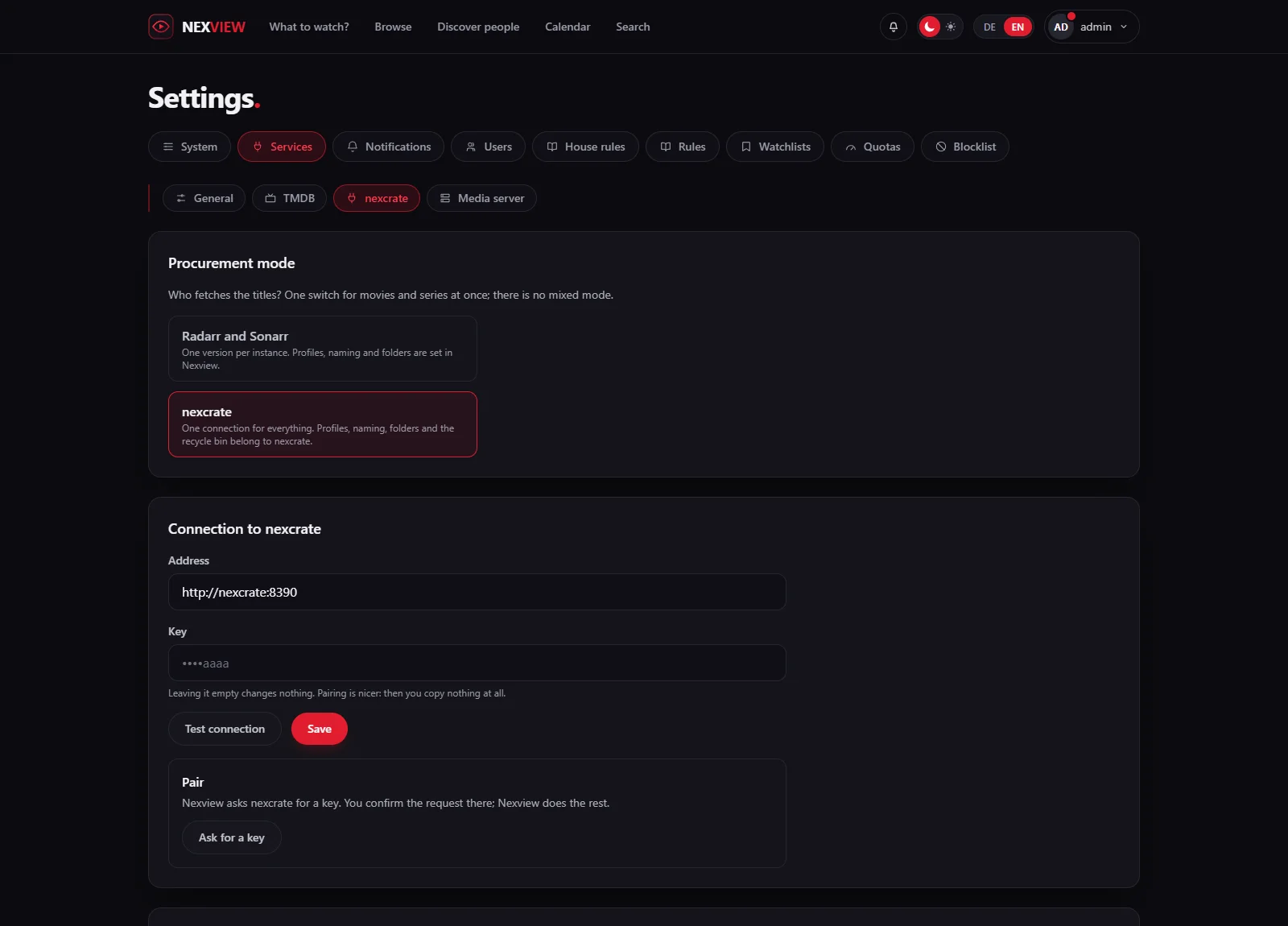
nexcrate replaces Radarr and Sonarr with a single app. Profiles, naming, folders and the recycle bin live there, and Nexview does not even ask for a root folder or profile when someone requests. What gets requested is a version, such as Full-HD or 4K.
Connect and pair
- Enter the address
Under “Settings › Services › nexcrate” enter, at “Address”, where nexcrate can be reached, out of the box on port 8390, for example
http://nexcrate:8390. If Nexview runs in a container,localhostis the container itself. Use the address on your network, or the service name if both share a Docker network. - Pair
Choose “Ask for a key”. Nexview shows a code and asks nexcrate for a key. You confirm the request in nexcrate and Nexview does the rest, you type nothing. A request expires by itself after ten minutes. If you would rather enter the key yourself, use the “Key” field.
- Look at the state
After connecting you see “Connected. 2 versions found.” or the matching number. Below it Nexview checks whether this nexcrate will do. Whatever does not fit appears in red under “What speaks against this nexcrate”, for example a nexcrate that is too old or a key missing a scope. A red finding stops you, and clicking on does not help there.
After that, “What nexcrate reports” tells you what is missing over there before it shows up at the first request: no indexer, no download client, no TMDB token, a folder that cannot be written to, a full disk or an automation that is switched off. One card per version says “ready” or “not ready” and names the reason.
Versions and who may request them
The same page has the “Versions” list. Each version has a tick: ticked means everyone may request this version. Without a tick you hand out the right per account. In the wizard Full-HD is open and everything else is closed. A new version that you create in nexcrate stays locked in Nexview until you release it. Rights hang on the version and no longer on “4K or not”, the main version included.
What it is waiting for
With nexcrate every title page carries a box “What it is waiting for” with one line per version. It says things like “It is here.”, “Downloading right now.”, “Nothing found that fits the profile.”, “Not released yet” with a date, “A find is still sitting out the configured delay.” or “The download is stuck and waits for the owner.” nexcrate supplies the reason and Nexview writes the sentence, so it appears in your language. Whoever decides on requests jumps from the title straight into nexcrate with “Open in procurement”.
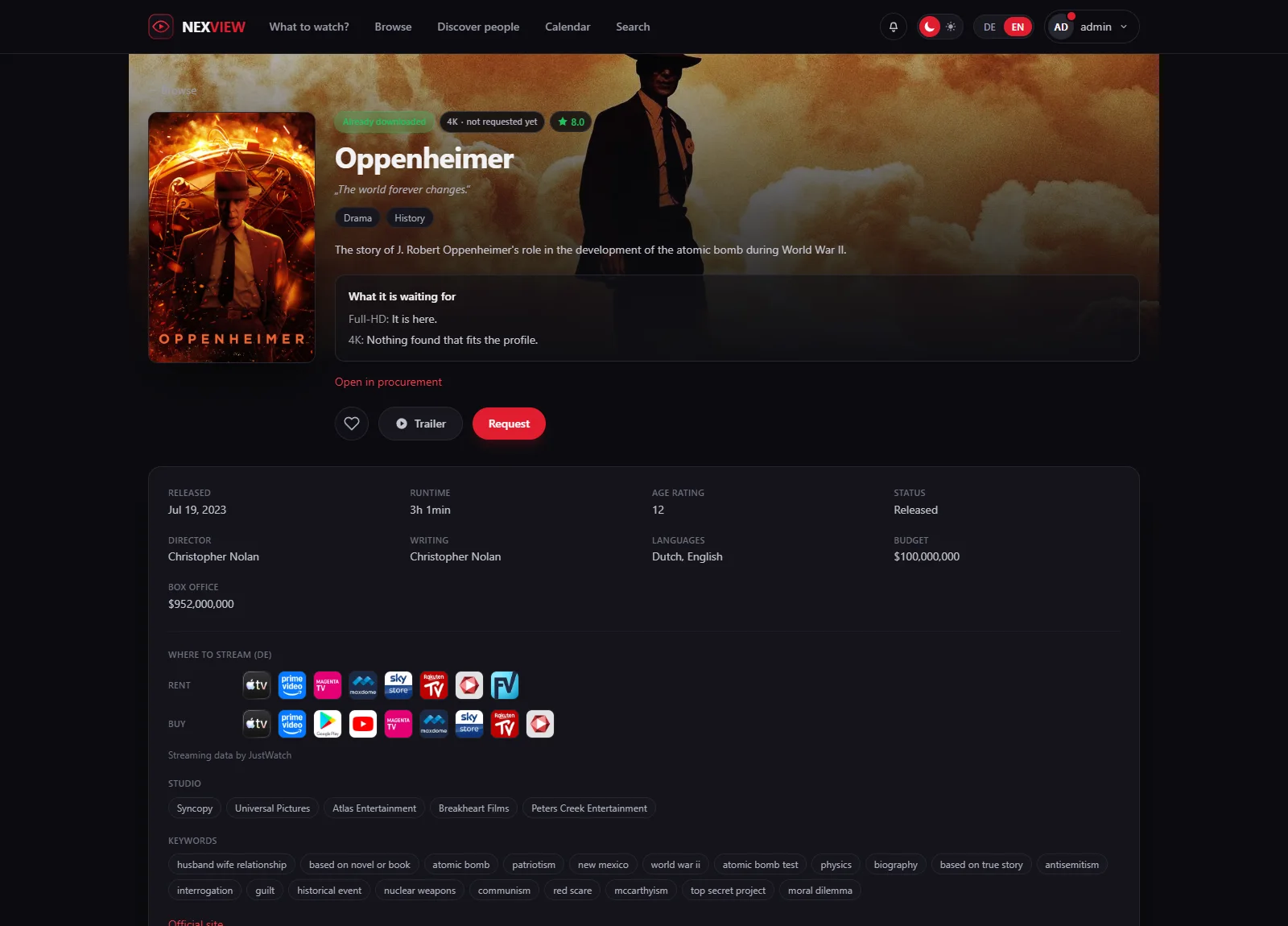
Radarr and Sonarr cannot say this. There the box is missing altogether instead of showing “no reason known”, because that would claim everything is fine.
The recycle bin
nexcrate keeps its recycle bin as a list instead of a folder, file by file with size, date and who deleted it. Nexview shows it under “Settings › Quotas” in the section “Recycle bin”, and “Restore” brings a file back. If the title has left the library in the meantime, nexcrate adds it again unmonitored, and the row says so beforehand. If the file is gone or its disk cannot be seen right now, that too is shown on the row and the button stays shut. When an upgrade replaces a file, the old one lands there as well. Only nexcrate from version 0.3.0 on can add titles again; an older one refuses, and Nexview says why.
With Radarr and Sonarr
If you stay with Radarr and Sonarr, you stay. This way is no outgoing model: the quality assistant, naming, webhooks and the choice of folder and profile on approval all remain.
Connecting
- Address and key
Under “Settings › Services › Radarr (movies)” and “Sonarr (shows)” enter the address and the “API key”. You find it in Radarr or Sonarr under “Settings › General › Security”. “Test connection” checks both before you save.
- Profiles and folders
Nexview reads the root folders and quality profiles from there and offers exactly those. If you add a profile in Radarr, it is here the next time you open the page.
- Return channel
With “Use the webhook return channel” Radarr or Sonarr tells Nexview straight away, instead of Nexview looking every two minutes. That works from Radarr 5 and Sonarr 4. Nexview creates the entry when you save and maintains it, and unticking removes it without a trace. “Test” proves that the call arrives. For that Nexview needs an address that Radarr can reach. If the public address will not do, enter the “Address as seen by Radarr/Sonarr” under “Settings › System › Address”.
Good to knowTwo stumbling blocks that turn up often. First the address: from inside a container localhost is the container itself. Second the empty profile list: if Radarr answers but the key is wrong, there is no error message, just an empty list.
Who picks profile and folder
Under “Quality profile and root folder” you decide, separately for movies and shows, who picks: “The requester picks”, “One fixed profile” (and likewise a fixed folder) or “The approver picks on approval”. In the last case every request arrives without a profile and waits for approval, so automatic approval does not apply there. Whoever may approve themselves still picks straight away.
The 4K instance
With “Add the 4K instance” you enter a second instance each for Radarr and Sonarr, with its own root folders and its own quality profiles. Only then does a 4K switch appear anywhere at all. The same title can then exist once in Full-HD and once in 4K. Per account you get “May request 4K movies”, “May request 4K shows” and “4K without approval”.
Quality profiles
The “Quality profiles” tab exists only in this mode. There the assistant builds profiles after the TRaSH Guides. More on the Quality page.
Moving from Radarr and Sonarr to nexcrate
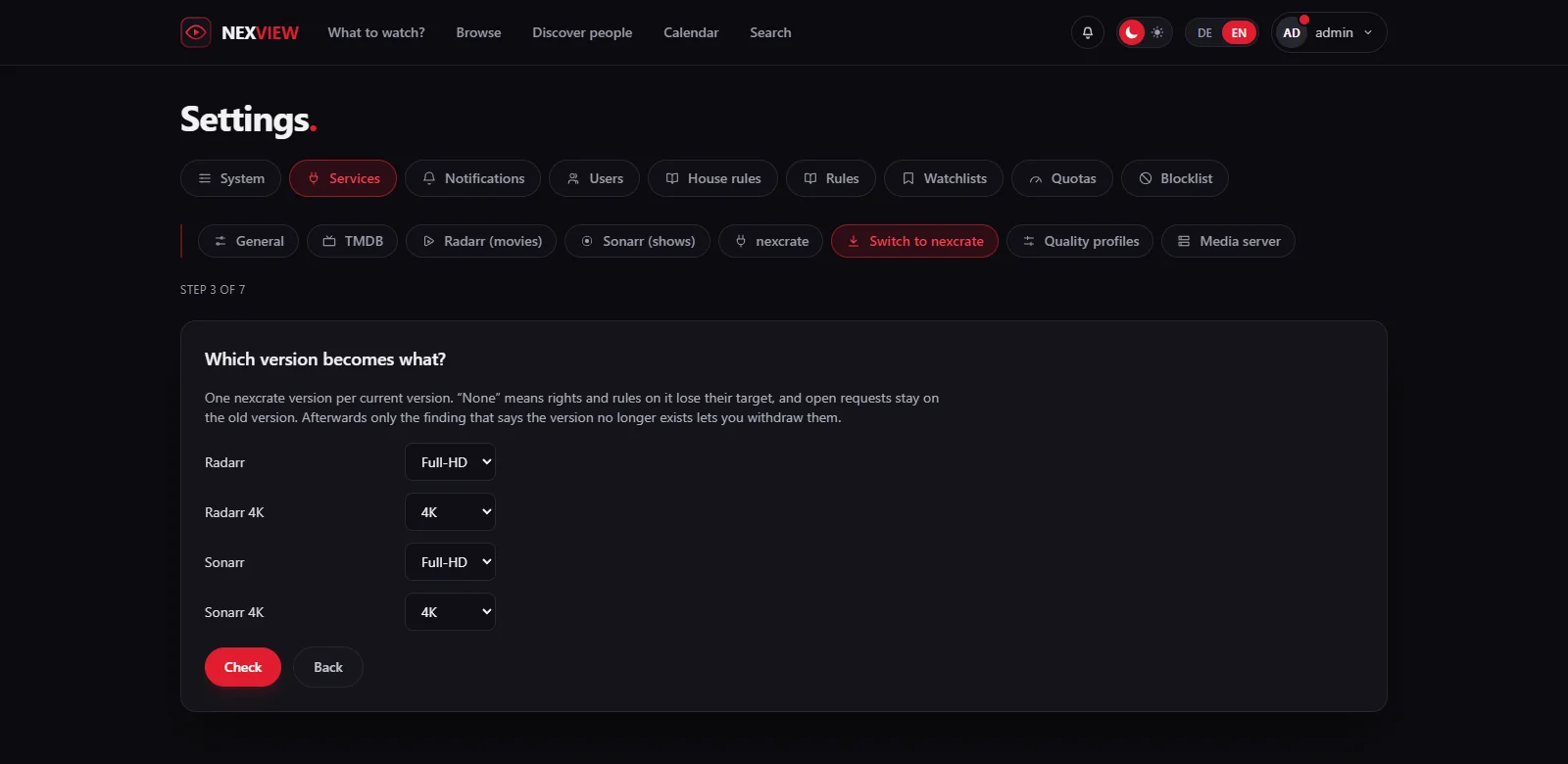
If Nexview already runs with Radarr and Sonarr, you find the tab “Switch to nexcrate” under “Settings › Services”. It appears only in that mode. The assistant has seven steps, and only one of them writes anything.
- What changes
The numbers up front: running downloads, open requests, storage entries. The page says at once that there is no way back except the backup.
- Connect to nexcrate
As above, with pairing and the check of its state.
- Which version becomes what?
For each current version you choose one from nexcrate. The mapping is one to one: two versions must not point at the same one, otherwise a title held in both, say the same film in Full-HD and in 4K, would collapse into one entry. The assistant says so while you choose. “None” means rights and rules on it lose their target, and open requests stay on the old version.
- Does nexcrate know the titles?
Before switching, Nexview checks whether nexcrate knows the titles that requests, storage entries and rights hang on. What is missing is listed with the reason, and you decide before going on. A title missing in nexcrate usually means its import from Radarr and Sonarr has not run yet.
- Backup
“Create backup” makes the only way back. Without it you cannot go on.
- Switch
“Switch now” rewrites every request, every storage entry and every permission onto the versions from nexcrate in a single transaction. If anything fails, nothing has changed. No file is touched, nothing is downloaded or deleted. Only afterwards does Nexview leave Radarr and Sonarr, removing just its own webhook entries there and deleting its credentials.
- Hand over approved requests
nexcrate has never heard of requests that were already approved, so Nexview hands them over. If something stays open, the next round picks up the rest.
Good to knowRead the message about the way back before you switch. You get back to Radarr and Sonarr only through the backup the assistant creates, because the tab “Switch to nexcrate” disappears after switching. Whatever happens in Nexview afterwards is not in that backup.
What neither way changes
- Nexview downloads nothing itself and stores no films. Without nexcrate or Radarr and Sonarr it runs as a plain catalogue.
- There is no mixing: movies through Radarr and shows through nexcrate does not work.
- What nexcrate itself can do and how to set it up is on the nexcrate site.
Next come the remaining services: Services and ratings.