Day to day · Chapter 7
Rules.
Most requests get the same answer every time. Well-rated documentaries? Yes. A film with 3.8 from two thousand votes? Probably not. Whoever does that by hand three times a week is no longer making a decision but carrying out a rule. So you write it down. Rules decide requests before the account setting applies.
A list, top to bottom
You find them under “Settings › Rules”. A rule is a handful of conditions and a consequence: approve at once, or decline. Nexview walks the list from top to bottom and takes the first rule that matches. If none does, everything stays as before, and the account setting decides whether a request is approved.
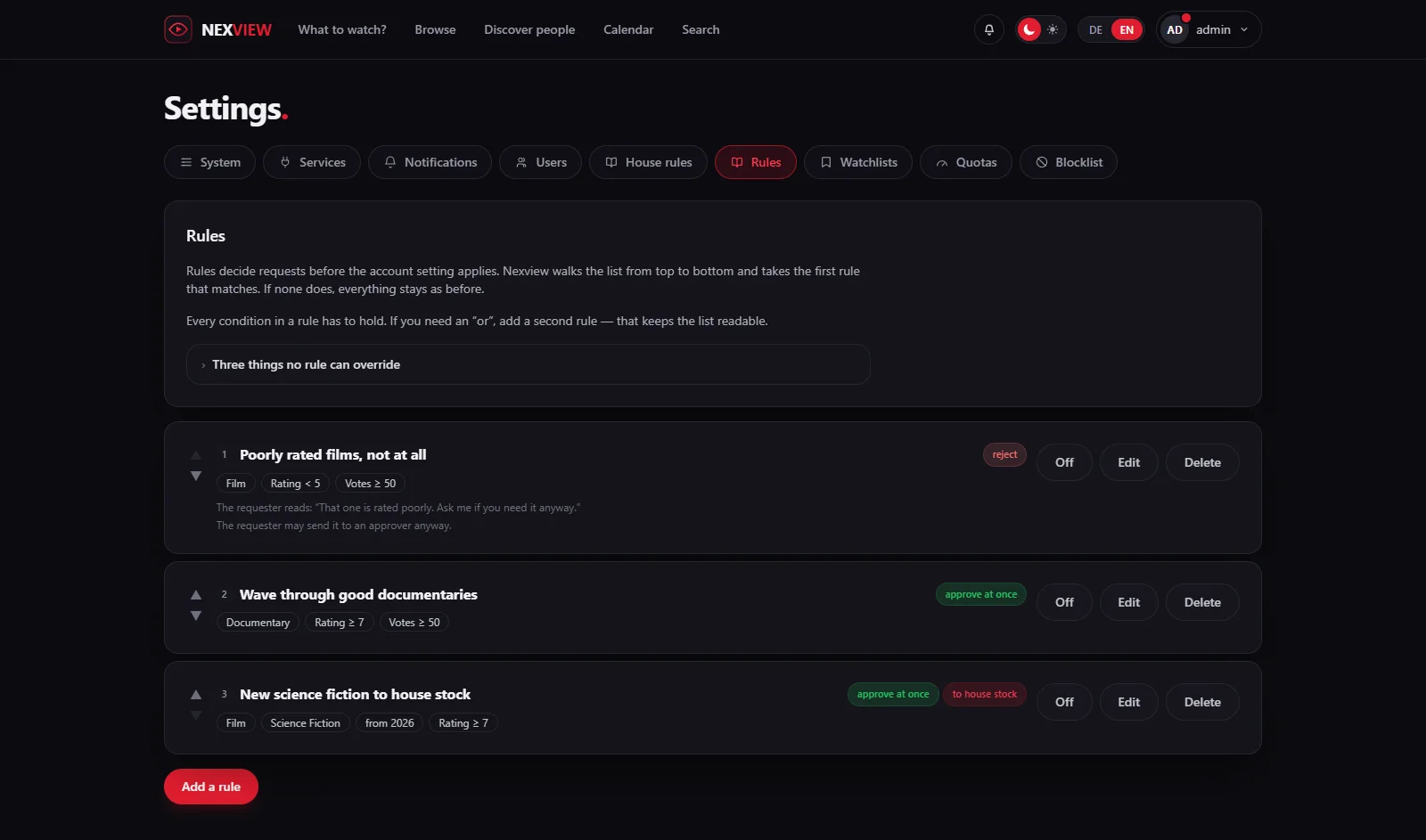
Within a rule every condition has to hold. If you need an “or”, add a second rule. That keeps the list readable, and only so is each rule a closed area for which Nexview can work out whether two contradict each other. If a rule is overtaken by one above it, the list says so (“For some titles … matches first”) and offers a click to reorder. The order is therefore part of the meaning. The arrows move a rule up or down, and “Off” switches it off without deleting it.
Writing a rule
- Create it
Choose “Add a rule”. Give the rule a “Name” that says what it is for.
- Choose conditions
Under “If” you use “Add a condition …” to decide how the rule recognises a title. There are ten fields: “Type”, “Genre”, “Rating”, “Number of votes”, “Release year”, “Runtime”, “Original language”, “Age rating”, “Requested tier” and “Already here as”. Numbers have “from” and “below”. “From” counts, “below” does not, so “from 5” and “below 5” do not overlap. Rating and age rating are chosen rather than typed.
- Choose the consequence
Under “Then” there is “approve at once” or “reject”. With “approve at once” you can book the request to house stock (“Book to house stock”). The title then counts against nobody’s storage quota. The item count still applies, because that hangs on the request and not on storage.
- Text for the requester
With “reject”, the reason goes under “What the requester reads”. Without text it just says “rejected”.
- Optional: let them ask anyway
With “The requester may ask anyway” they can still send the request to an approver once. Sensible for “poorly rated”, pointless for “already here in 4K”.
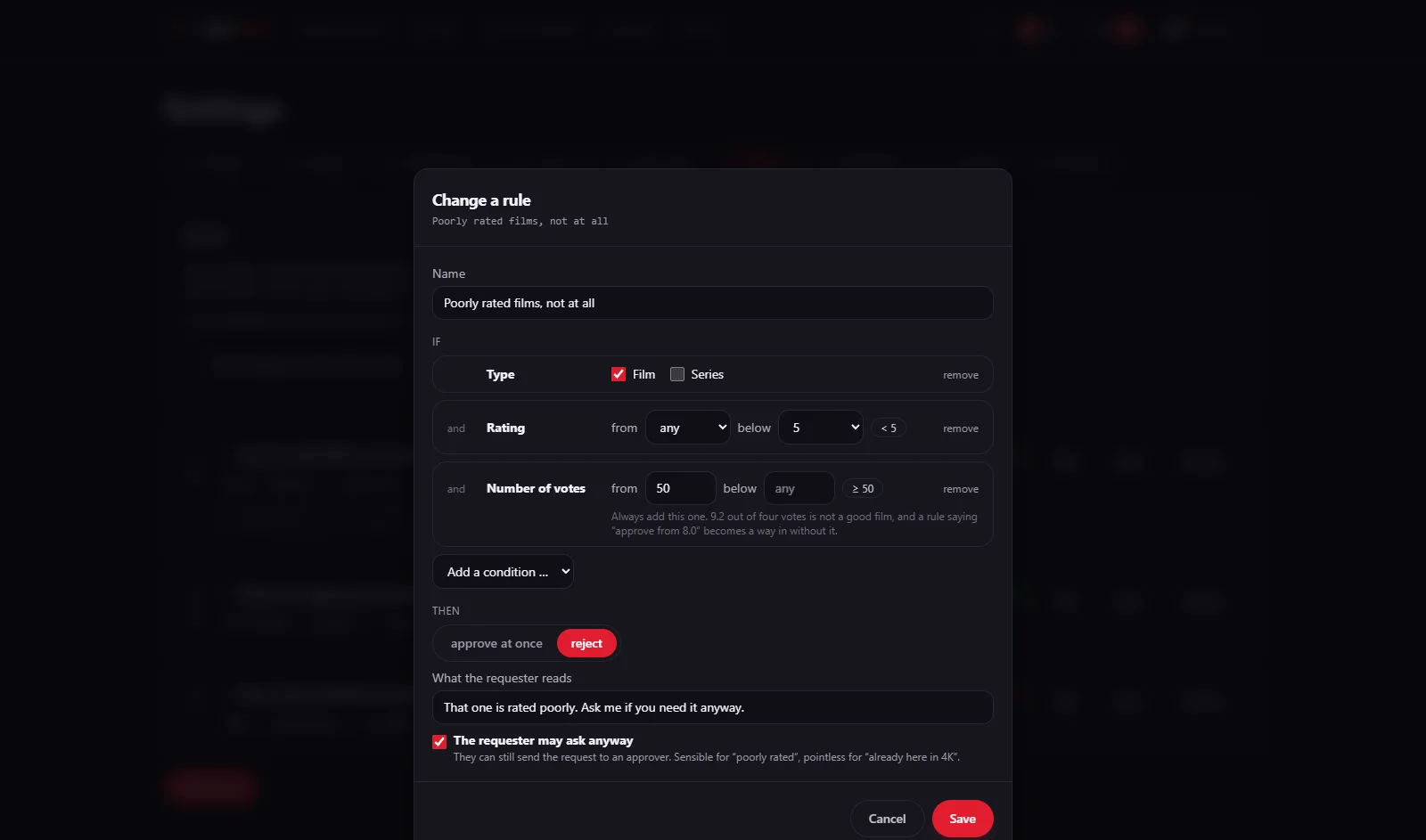
Good to knowAlways add the “Number of votes” to a rating. 9.2 out of four votes is not a good film, and a rule saying “approve from 8.0” becomes a way in without that condition. The age rating counts as far as TMDB knows it for your region. A title without one does not match the condition. “Already here as” needs two instances and knows only what was requested through Nexview.
Declined does not mean without a trace
If a rule declines, the request is created anyway, in the state “Rejected”, with the reason from the rule and with the rule’s name in the history. The requester gets a message as with a decline by hand and reads the reason at the moment of the click. A declined request blocks the title for nobody and costs no quota. If the rule has “The requester may ask anyway” on, the approver sees the badge “Against a rule” on the renewed request. That is information, not a hurdle, and it never applies over a no that a person has said.
Three things no rule can override
- The age filter. It works when titles are shown, not when they are requested. A rule saying “approve everything from 2026” gives a child no title it is not allowed to see.
- The parents’ decision. A child’s wish always goes to them, even where a rule would match.
- The requester’s quota. Whoever may not request anything gets no further through a rule either, not even when the title would go to house stock.
Rules do not apply to administrators and approvers at all, just like the blocklist. They are meant to slow the others down, not you. And one more exception: if in your house the approver picks the target (see Approvals), a rule does not approve at once, the request goes to them anyway, otherwise it would bypass the very choice they are meant to make.
Changing and deleting
“Edit” opens the rule in the window “Change a rule”. When you delete (“Delete this rule?”) it is taken out of the list, and requests it used to catch take the normal route from then on. Without rules, what the account says keeps deciding. If you move from Radarr and Sonarr to nexcrate, the switch rewrites the versions inside the rules too.
Next come limits on quantity: Quotas and storage. How the rules compare with Seerr and Ombi is on the Comparison page.