Day to day · Chapter 10
Notifications.
Requests rarely sit there out of ill will, usually nobody looks. So Nexview tells you as soon as something is waiting or ready. There are two levels: each person sets up the personal ways in their own profile, and the administrator sets up the channels for the whole installation once. On top of that come tickets, with which someone reports that something is wrong with a title.
For each person: bell, mail and web push
- The bell at the top of the app shows every change: your request was approved, rejected or cancelled, a download has finished, a ticket has a reply. “Mark all as read” and “Clear list” keep it tidy. It keeps showing everything, regardless of the switches for mail and web push.
- E-mail. Under “Profile › Notifications › E-mail” you choose, per event, what you want to hear about by mail. Everything is off out of the box. That requires a mail server to be set up.
- Web push brings notifications to your own phone or computer, even while Nexview is not open. It no longer needs an operator for that: under “Profile › Notifications › Web Push” each person allows notifications in their browser with “Allow notifications”. Which notifications arrive is decided by the same ticks as for mail, per account and therefore the same on every device. Each device then appears under “Subscribed devices” with its last delivery attempt, and “Send a test message” shows at once whether anything really arrives.
Web push notifications are encrypted end to end and signed with a key your installation generates once. They travel through your browser’s push service, that is Google, Mozilla or Apple, and it sees only that something arrives, not what. Two conditions apply: web push needs https, and on iPhone and iPad Nexview must first be on the Home Screen through “Add to Home Screen”. The page says on every device what is still missing, such as “Only over https” or “Add it to the Home Screen first”. If you say no once in the browser, Nexview cannot ask again; you can only undo that in the browser’s site settings.
Channels for the whole installation
Under “Settings › Notifications” the administrator sets up shared inboxes for the installation, deliberately separate from the bell and from the personal mail address. There are seven ways: ntfy, Gotify, Telegram, Discord, a plain webhook, Apprise and e-mail. Each tab shows one tile per inbox and a “+” tile for the next. “Take out of service” puts a target out of operation for a while without deleting it.
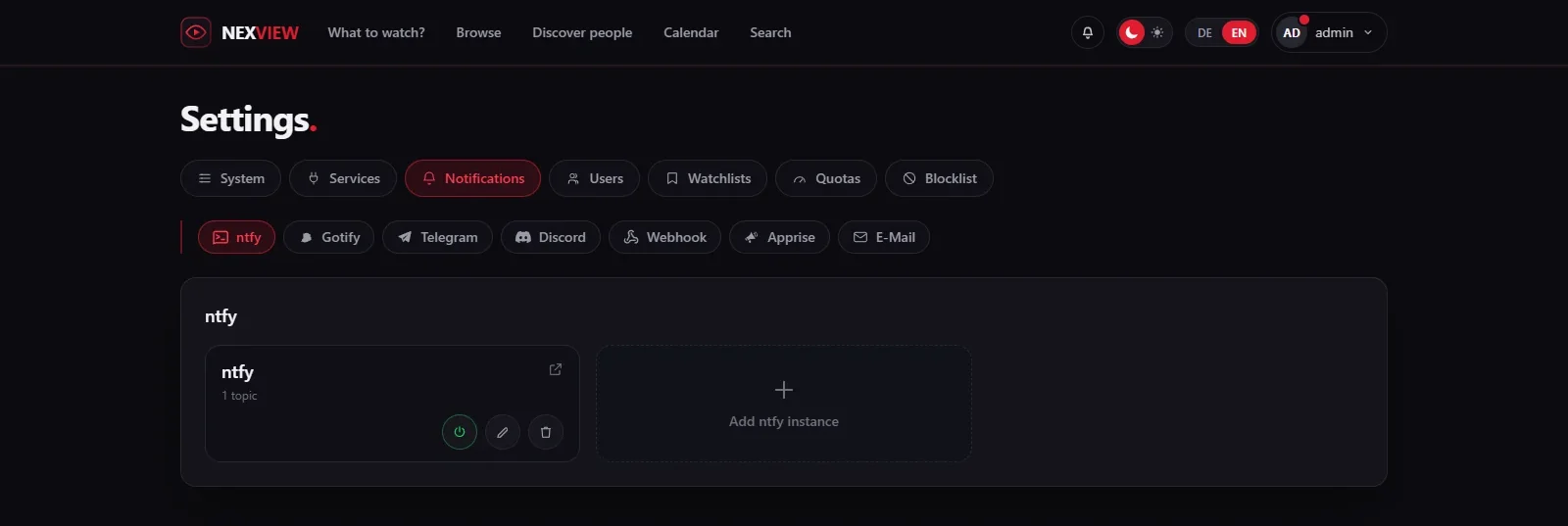
Connection on top, inboxes below
Services with two levels get two: an ntfy server carries any number of topics, a Telegram bot any number of chats, and a Gotify instance has its application. You store the connection once, address and token, and the inboxes below choose for themselves what they get told about. For each inbox you set:
- Channel language. One channel in German, a second in English.
- Urgency from “Quiet” through “Normal” and “High” to “Urgent (rings at night too)”, where the service knows it.
- The events. Only what is ticked goes out. The choice, in two groups: under “Requests” the approval requests (“Notify about new requests awaiting approval”), “Now available”, “Request decided” and “Request cancelled”, under “Operations” “New ticket”, “Quality feedback”, “New media-server account”, “Storage hand-backs” and “Instance problems”.
That way one channel can report only the approvals while a second catches everything that finishes, without anyone setting up two bots. A channel for the family reports only what is done, and the operator’s channel sees tickets too.
The seven ways in detail
- ntfy. The address of your instance, without the link to the topic, publicly
https://ntfy.sh, plus authentication if needed. A topic is not a secret: anyone who knows the name can read along. On a public instance pick something unguessable. - Gotify. The instance address without a path and the token of an application from Gotify under “Apps”, not your login password.
- Telegram. A bot you create with @BotFather, with its token. The chats are the inboxes. A built-in guide leads from @BotFather to the first message, “Check token” fills in the bot’s name, and “Fetch chats from the bot” lists everyone who has written to it, so you type nothing. Important: a bot may never message anyone first, so you send it
/startonce. - Discord. The webhook address of a channel (Edit › Integrations › Webhooks), with no bot and no account for Nexview. Messages appear as a coloured card with the poster. Treat the address like a password.
- Webhook. Nexview sends every message as a POST with fixed JSON to an address of your choice, optionally with an Authorization header. It is meant for anything that can attach itself: Home Assistant, n8n, Node-RED or a script of your own. The answer must be a success (2xx), otherwise delivery counts as failed.
- Apprise. A dispatcher that forwards messages to over a hundred services, such as Signal, Matrix, SMS, Pushover or Slack. If you run an Apprise API yourself, you enter its address and the configuration key. The credentials of the target services stay in the Apprise server, Nexview does not know them.
- E-mail. A general address without an account, such as a shared mailbox or an address that triggers something on the other side. Mail server and sender come from the mail settings.
The test with a code
An “HTTP 200” from a push service only means accepted, never arrived. A misspelt topic or an app without a subscription is acknowledged just as cheerfully. That is why the test message carries a four-digit code, and only someone who can type it back may save: “Send test message”, enter the code, “Check”. Only then do the ticks for the events appear. E-mail targets skip the code on purpose, because behind a shared mailbox there may be nobody who could read it. With the webhook the code is in the “title” field of the test message and also in the “code” field.
When something sticks
Underneath the channels is an outbox of its own that works every ten seconds. There are three attempts per message. After that the last error stays visible on the tile (“Last failed on …”) instead of being swallowed silently. And one message goes out per event and inbox, not per recipient. A request that three administrators look at reports once, not three times.
Good to knowOnce an application or a browser has registered itself so that Nexview notifies it, such as the Home Assistant integration or a device with web push, the section “Callbacks” appears below the channels. You do not create anything there, you see where Nexview sends things and can disconnect a row. Each one receives only what concerns its owner.
Feedback: tickets and stars
The audio track is only in English, the subtitles do not fit, episode 4 breaks off in the middle. In most households the operator hears that in passing and has forgotten it by the time they sit at the computer. Nexview has a small ticket centre for it.
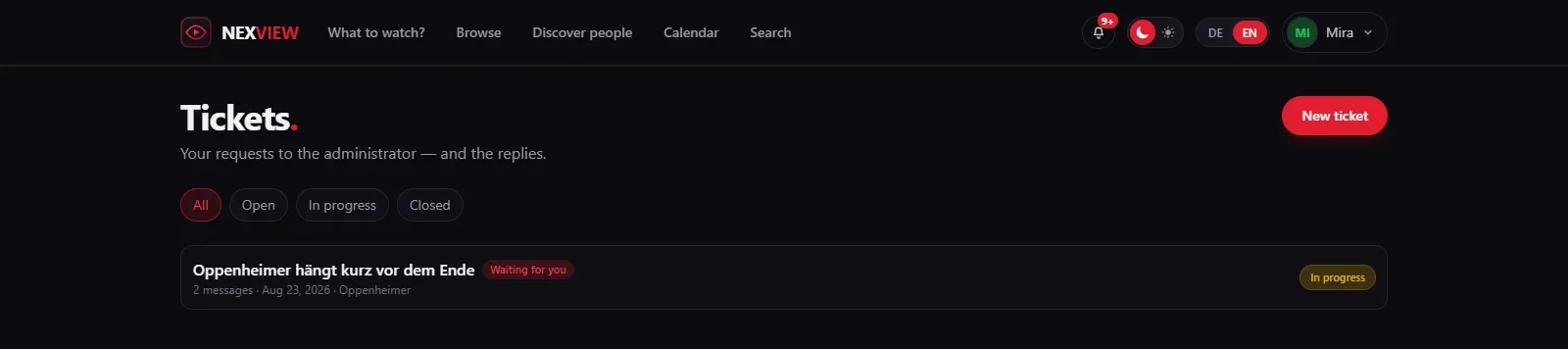
- Reporting. From any title page a problem can be reported (“Report as a problem”). The title is attached automatically, nobody has to type it. Under “Tickets” there is also “New ticket” for everything else.
- The history. A ticket is “Open”, “In progress” or “Closed”. The administrator replies in the ticket, and the reporter sees the reply in the same place. A new ticket can trigger a notification, also on one of the channels above.
- Stars. For a title that has arrived Nexview asks “How was the quality?”, with stars and a sentence. Anyone may rate, not just the requester, because the rating belongs to the title and not to the request. If a better version is fetched later, “applied to an older file” appears beside it. For a poor verdict Nexview offers “Report as a problem” and turns it into a ticket.
- For the operator. Under “All requests” there is the filter “Feedback”, which shows where something went wrong.
Next comes a job only you have: House rules. What tickets and notifications can do at a glance is on the pages Notifications and Feedback.